M4A or WAV: which audio format should you choose?
Compare the app’s AAC-based M4A and WAV exports, including file size, compatibility, editing, playback, and source-quality limits.
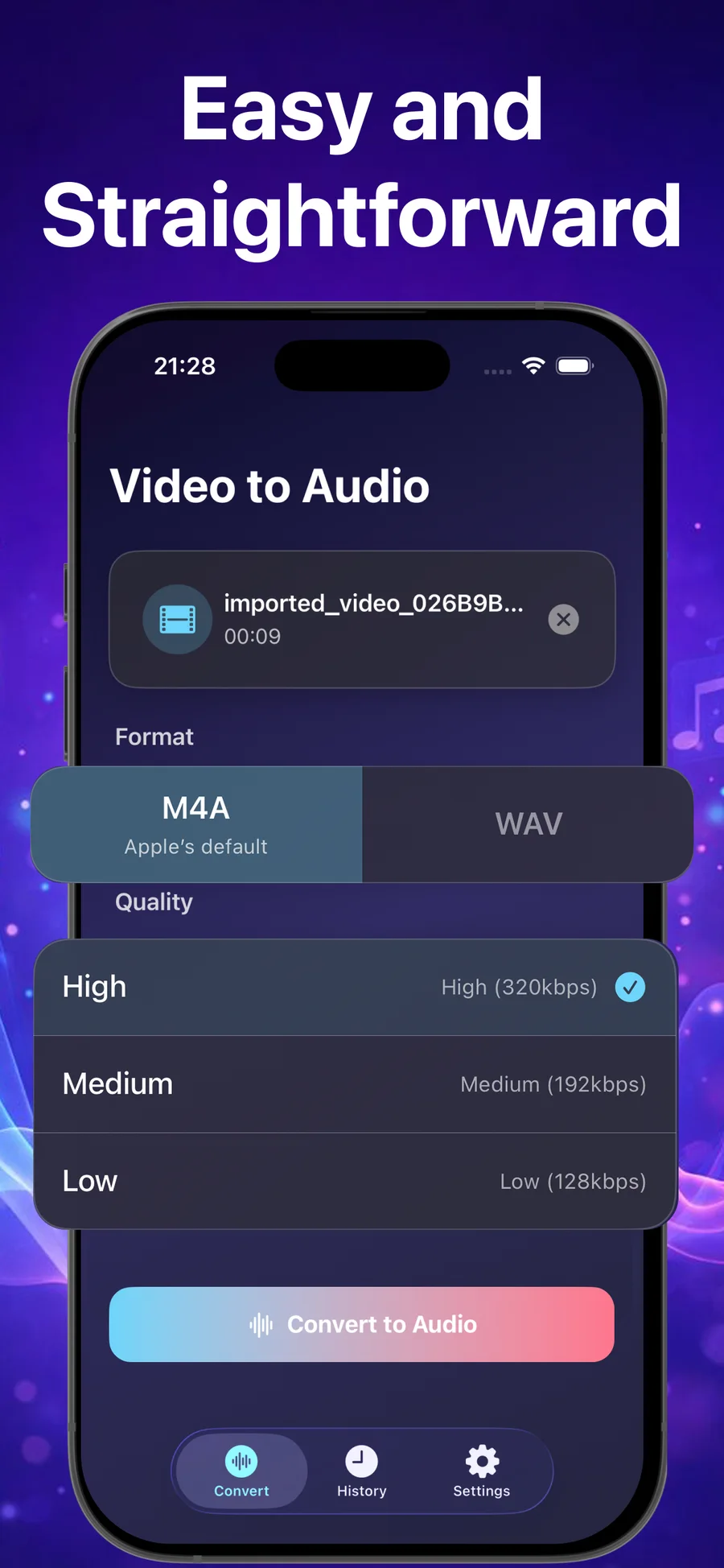
Choose the app’s AAC-based M4A option when you want a compact audio file for everyday playback and sharing. Choose WAV when an editor or destination specifically asks for that file type. The right format depends on what you will do with the extracted audio next.
When M4A is the practical choice
M4A is a common Apple audio format and the app describes its M4A export as AAC using Apple's default encoder. It is a useful default for listening, sending a file through the iOS share sheet, and keeping an audio copy without choosing a large production-oriented format.
- Choose M4A for everyday playback.
- Choose M4A when sharing a compact audio file matters.
- Choose M4A when the recipient already uses Apple devices or apps that accept it.
When WAV makes more sense
WAV is widely accepted by audio editors and production tools, so it can be a useful handoff format when your destination specifically requests it. The WAV container can hold different audio encodings, so the file extension alone does not prove that its audio is uncompressed. The Library of Congress WAVE format description documents both LPCM and compressed encodings inside WAVE files.
Choosing WAV does not restore detail that was missing from the original video. Converting an already compressed source into a larger file cannot recreate discarded audio information.
Choose quality after choosing the format
Format and quality are separate decisions. After choosing M4A or WAV in Convert Video to Audio - Pro, select High, Medium, or Low based on the source and the destination.
| Need | Format to start with | Quality to consider |
|---|---|---|
| Listen and share | M4A | Medium or High |
| Keep a compact audio copy | M4A | Medium or Low |
| Continue editing the audio | WAV | High |
| Preserve a useful reference | M4A or WAV | High |
Review before sending the file
Play the completed output in the built-in player. Check the first few seconds, the ending, and any section that matters to your project. If the result is not suitable, convert the source again with a different format or quality instead of assuming that a larger file will always sound better.
A simple decision
- Choose M4A for everyday listening, sharing, and smaller files.
- Choose WAV when an editor or destination specifically asks for that file type.
- Choose High, Medium, or Low based on the source and destination.
- Listen to the result before sharing or saving it.
Convert Video to Audio - Pro provides M4A and WAV export with local conversion and a built-in player for checking the audio before you share it. For the complete workflow, read how to convert video to audio on iPhone.