Combine multiple images
Pick photos from your library and arrange them in the order they should appear in one PDF.
Convert Image to PDF - create
Photos · PDF · On-device
Image to PDF converter for iPhone and iPad
Choose one or more photos, put the pages in order, select the document size and margins, then preview, save, or share the PDF from your iPhone or iPad.
Requires iOS 17 or iPadOS 17 or later · No account · On-device conversion
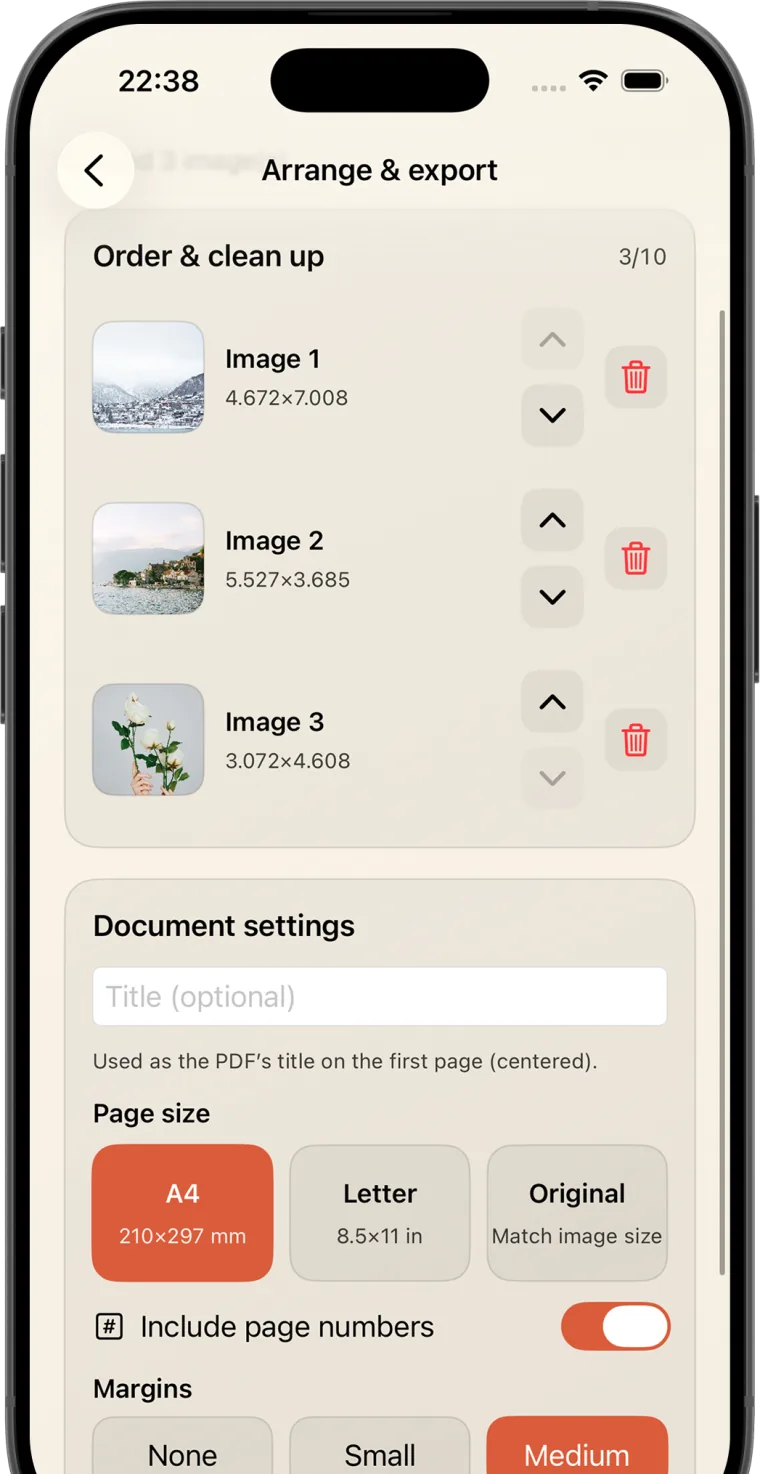
Pick photos from your library and arrange them in the order they should appear in one PDF.
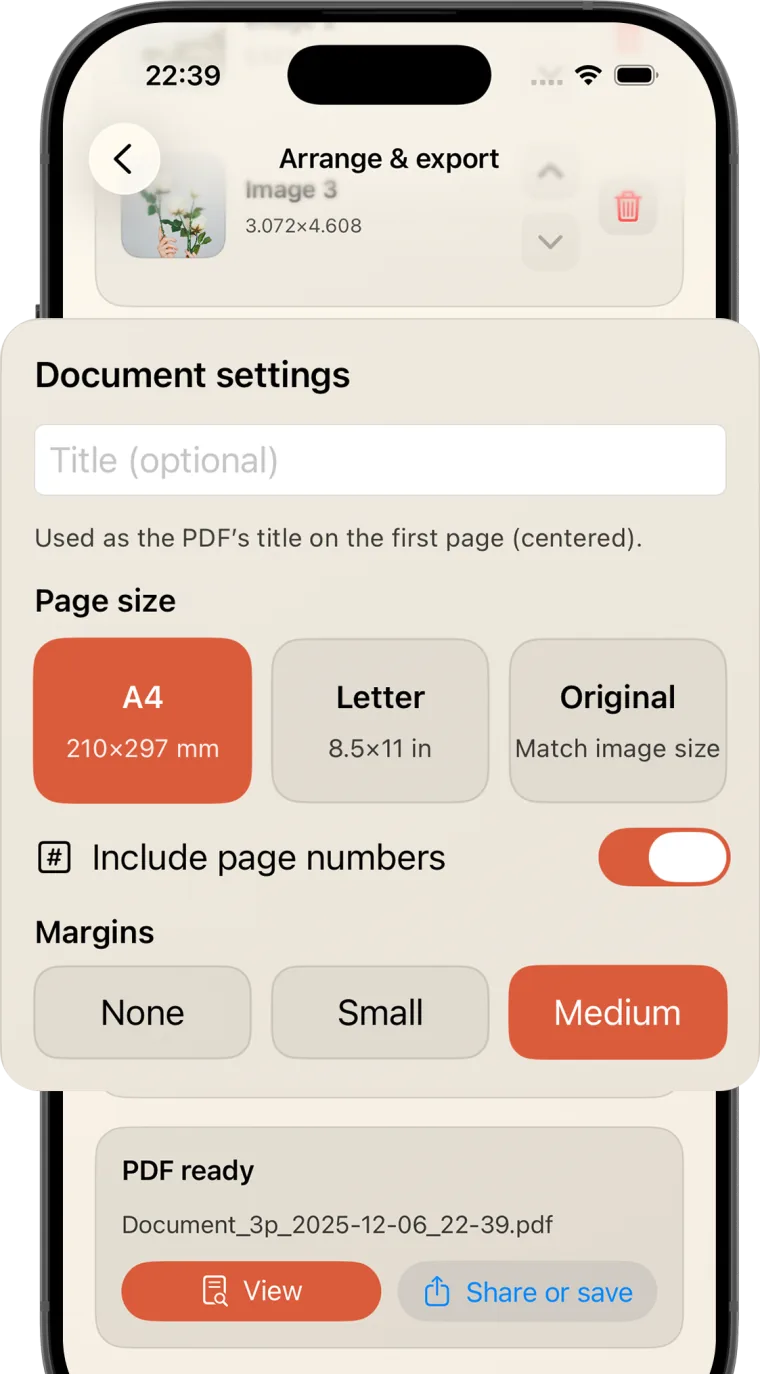
Choose A4, US Letter, or original image size, then select the margin and optional page numbers.
Open the finished PDF, save it to your device, or send it directly to another app.
Image processing stays on your device, and the current App Store privacy label says no data is collected.
Control the page order
The selected images appear as an ordered list before export. Move a page up or down, remove a photo that does not belong, and check the count before creating the document.
Receipts
Class notes
Sketches
Document settings
Use a consistent paper size for printing or submission, or preserve the original image dimensions. Add a title, choose a margin, and include page numbers when the document needs them.
A4
210 × 297 mm
A familiar choice for documents intended for international printing or submission.
Letter
8.5 × 11 in
A standard page choice for many documents used in the United States and Canada.
Original
Match image size
Keep each PDF page aligned to the dimensions of its source image.
Three clear steps
Select the images for the document. Add more than one when the result should be a multi-page PDF.
Set the page order, title, paper size, margins, and page-number option before export.
Open the completed PDF to check it, then save it to the device or share it with another app.
One image or a complete set
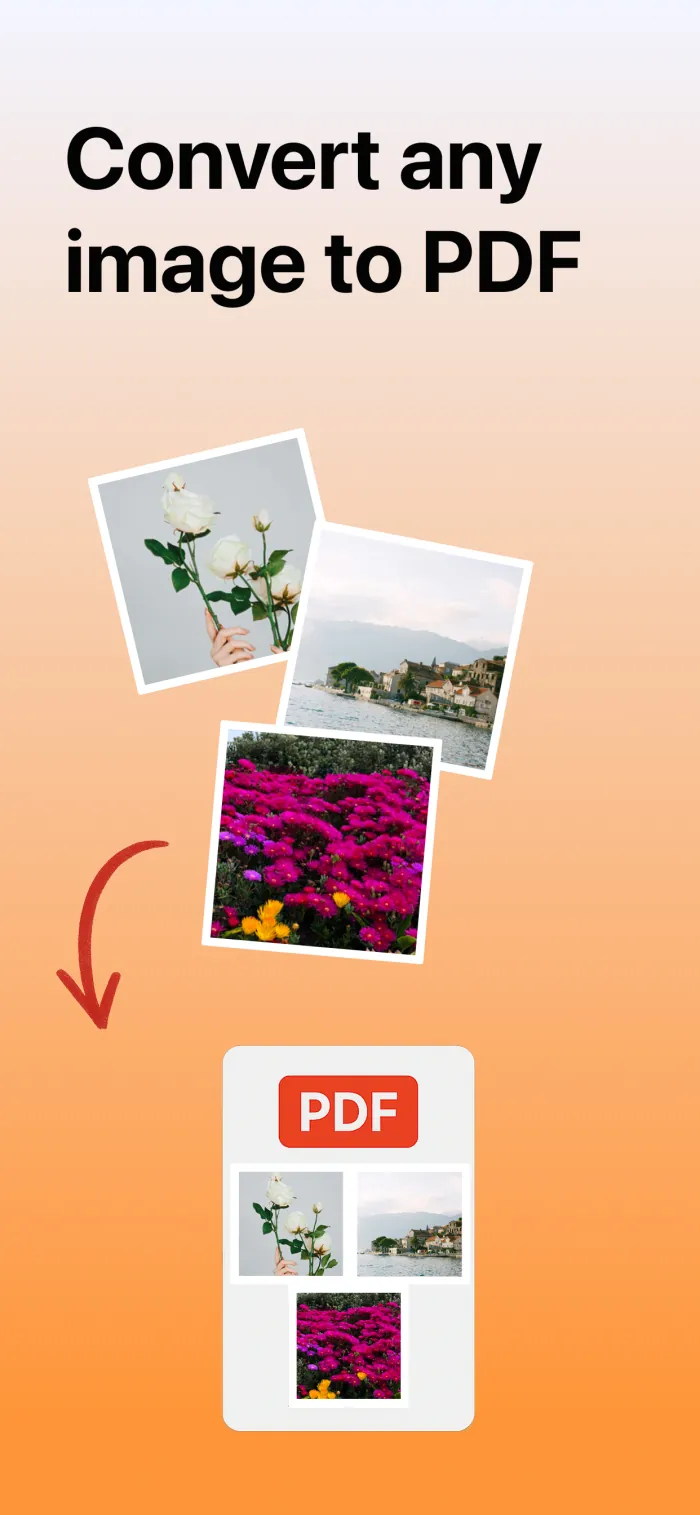
Use one image for a simple page, or combine related photos into a document that keeps their order. It works well for receipts, photographed notes, reference images, sketches, and visual records.
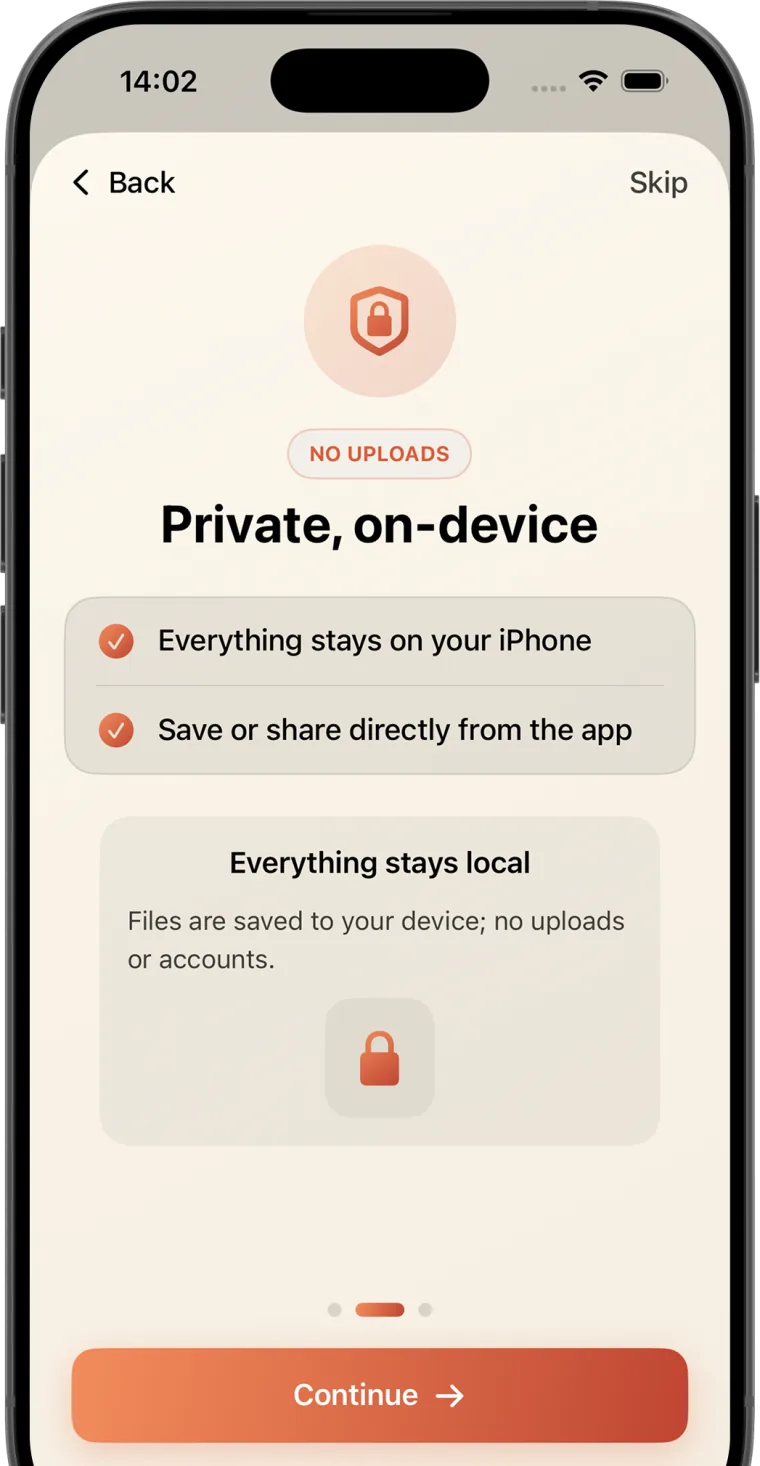
Private, on-device
Conversion happens locally. The app does not require an account, and the current App Store privacy label says the developer does not collect data from the app.
Read the privacy summaryApp information
Yes. Select multiple images, arrange their page order, remove any that do not belong, and export them as one PDF document.
The app provides A4, US Letter, and Original. Original matches the PDF page to the source image size.
Yes. You can choose a margin setting and include page numbers before creating the PDF. A document title is optional.
No. The app states that image processing stays on the device, and its current App Store privacy label says no data is collected.
The current listing supports iPhone and iPad from iOS or iPadOS 17, Apple silicon Macs from macOS 14, and Apple Vision from visionOS 1. Apple notes that the iPhone and iPad app is not verified for macOS.
Practical guides
5 min read
Turn one or more photos into a PDF, arrange the pages, choose A4, Letter, or original size, add margins and page numbers, then save or share it.
Read article6 min read
Choose an iPhone image to PDF app by page-order control, paper sizes, margins, privacy, output review, and the number of photos in your document.
Read articleArrange, format, and share images as a PDF.