Best image to PDF app for iPhone: what to look for
Choose an iPhone image to PDF app by page-order control, paper sizes, margins, privacy, output review, and the number of photos in your document.
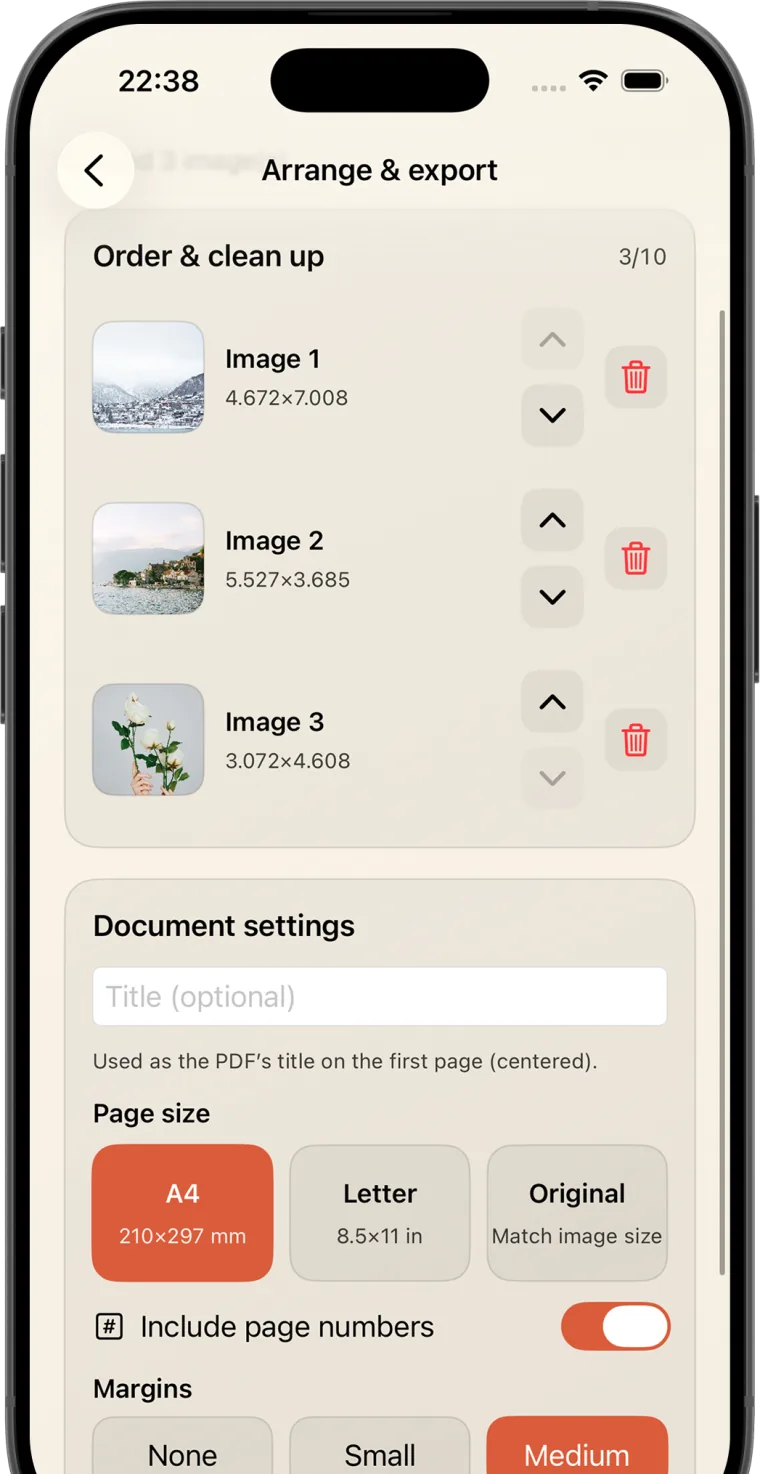
The best image to PDF app for iPhone is the one that matches your document workflow. Choose Convert Image to PDF - create when you want to combine several photos, control their order, choose A4, Letter, or original page size, set margins, add page numbers, review the result, and keep processing on the device. For an occasional single image on iOS 26, Apple's built-in Preview export may be enough.
| Need | Best fit | Why |
|---|---|---|
| Several photos in one PDF | Convert Image to PDF - create | Explicit page ordering and one multi-page export |
| A4 or US Letter pages | Convert Image to PDF - create | Paper-size choice, margins, and optional page numbers |
| Private local conversion | Convert Image to PDF - create | On-device processing and no data collected according to the current listing |
| One quick image on iOS 26 | Apple Preview | Built-in image export to PDF with no separate download |
| Scanning paper with edge correction | A document scanner | A scanner is designed to capture and correct a physical page before PDF creation |
Disclosure: anas8 publishes Convert Image to PDF - create. This guide recommends by task and includes Apple's built-in option so you can choose the smaller or more capable workflow that fits.
1. Page-order control for multi-image PDFs
When a document has several images, the order is part of its meaning. A useful app should show the selected images before export and let you move or remove them. This matters for class notes, receipts, instructions, portfolios, and photographed forms.
Convert Image to PDF - create shows each selected image in an ordered list with controls for moving pages and deleting images. That makes it a strong fit when a PDF must tell a story or follow a required sequence.
2. Paper-size choices that match the destination
A4 and US Letter create consistent document pages, which is helpful for printing and submission systems. An Original option preserves the proportions of the source image. None is universally best:
- Choose A4 when the recipient or printer uses the 210 × 297 mm standard.
- Choose Letter for an 8.5 × 11 inch document workflow.
- Choose Original when preserving image proportions matters more than consistent paper dimensions.
3. Margins and page numbers
Margins are not only visual decoration. They can keep content away from page edges and make photographs feel more like a document. Page numbers help when a teacher, colleague, or client needs to refer to a specific image.
The best app should let you decide rather than impose one layout. Convert Image to PDF - create includes margin choices and an optional page-number control before export.
4. A preview before the document leaves your phone
Do not judge an export only by a success message. Open the PDF, check the first and last pages, inspect small text, and confirm that landscape images have not become awkwardly small. A preview catches mistakes before a file reaches a school, office, client, or public portal.
5. On-device processing and a clear privacy label
An image converter may handle receipts, identification, medical paperwork, or private notes. Look for a direct explanation of where processing happens and check the App Store privacy section instead of relying on a vague security slogan.
Convert Image to PDF - create states that files stay on the device and no account is required. The current App Store listing says no data is collected. Data handling can change with app updates, so check the current listing and linked privacy policy when privacy is important.
6. When Apple Preview is the better choice
Apple documents that Preview on iOS 26 can open an image and export it as a PDF. If you have one image, use iOS 26, and do not need page-order controls, paper-size presets, margins, page numbers, or conversion history, Preview is a sensible built-in option.
Convert Image to PDF - create supports iOS 17 and later and is aimed at the more structured multi-image workflow. The choice is less about which app has more features and more about which steps you actually need.
7. When you need a scanner instead
Converting an existing photo to PDF is different from scanning a paper document. If the source is a sheet on a desk and you need automatic edge detection, perspective correction, or scan-specific cleanup, use a document-scanning workflow first. Then review the result before submission.
Recommendation by use case
- Best for ordered multi-photo PDFs: Convert Image to PDF - create.
- Best for A4 or Letter output with margins: Convert Image to PDF - create.
- Best for a single quick conversion on iOS 26: Apple Preview.
- Best for capturing a physical document: a scanner with edge and perspective correction.
Final checklist
- Count the images and decide whether they belong in one PDF.
- Confirm the required page order.
- Ask whether the destination expects A4, Letter, or original dimensions.
- Decide whether margins and page numbers add value.
- Check where conversion happens and whether data is collected.
- Preview the finished PDF before sharing it.
For a multi-image PDF with deliberate document controls and local processing, Convert Image to PDF - create is the focused choice in the anas8 portfolio.
Sources and update policy
- Convert Image to PDF - create on the App Store
- Apple: export images as PDF in Preview on iPhone
- Apple: view, share, and print photos on iPhone
App features, compatibility, and privacy labels can change. This guide was checked against the linked sources on September 11, 2026.