How to turn text into speech on iPhone or iPad
Turn typed or pasted text into speech, choose a voice, adjust the speed, follow playback, and save the generated audio.
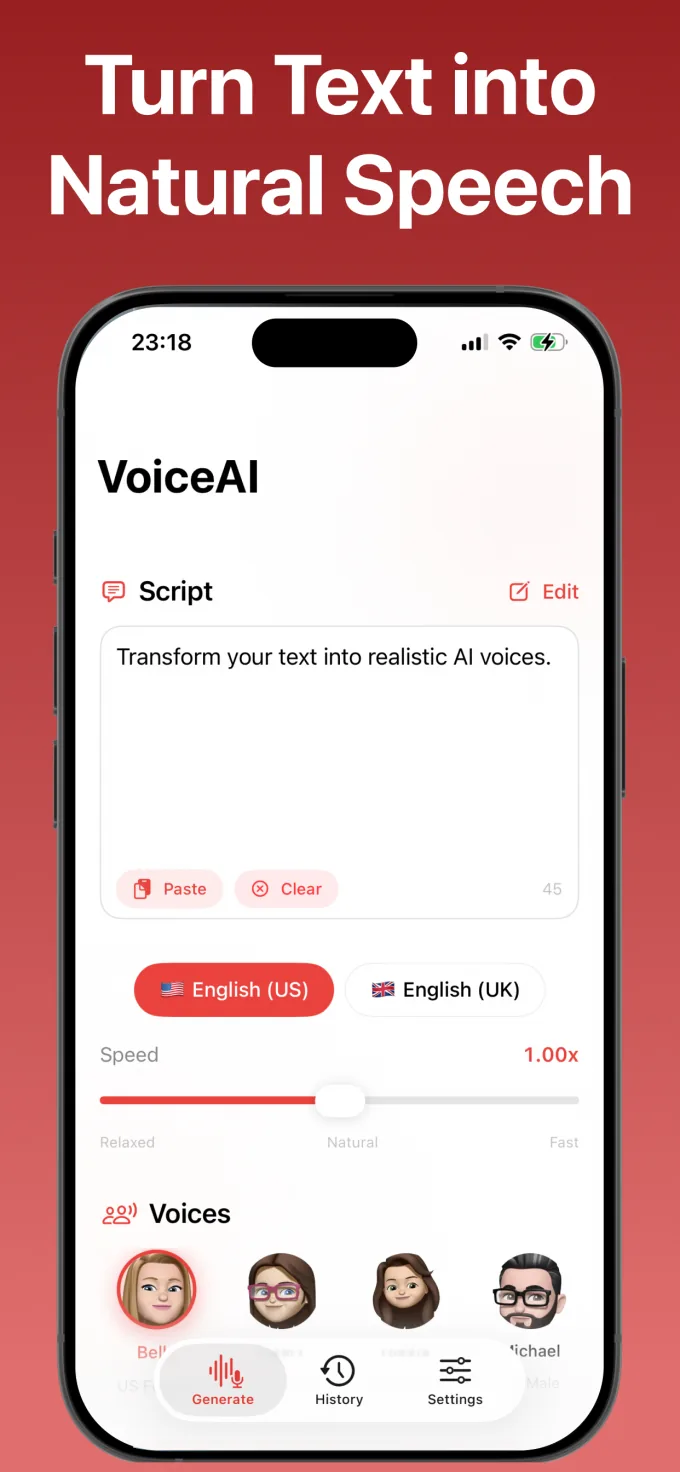
To turn text into speech on iPhone or iPad, paste or type the text, choose a voice, set a comfortable speed, generate the audio, and listen through the full result before saving or sharing it.
Prepare text that sounds natural aloud
Text written for silent reading may contain long sentences, abbreviations, or formatting that sounds awkward when spoken. Read the text once yourself and divide long sentences where a listener would expect a pause.
- Use punctuation to create natural pauses.
- Spell out unusual abbreviations when pronunciation matters.
- Remove headings or notes that should not be spoken.
- Check names, numbers, and technical terms carefully.
Enter the text
Open Speech Assistant Offline and type directly into the text area or paste prepared text from another app. Review the beginning and end after pasting so no unrelated text is included.
Choose a voice and language
Select an available US or UK voice that fits the material. A voice suitable for instructions may not be the best match for a story or personal message. Generate a short sample when you are deciding between voices.
Adjust the speaking speed
Use a slower speed for detailed instructions, unfamiliar vocabulary, or accessibility needs. A standard or slightly faster pace can work for familiar material. The correct speed is the one that remains clear without sounding unnaturally stretched.
Generate and review the audio
Generate the speech on the device, then use play, pause, and timeline controls to review it. Live word highlighting helps you follow the current position in the text and locate a sentence that needs editing.
If a word is pronounced incorrectly, try clearer punctuation, a phonetic spelling, or a different sentence structure. Generate the revised text and listen again.
Save the useful result
- Listen through the complete audio.
- Check the pronunciation of names and numbers.
- Confirm the pace is consistent with the purpose.
- Save the result to history.
- Use the share or export option when another app needs the audio.
Speech Assistant Offline supports text entry, voice and speed selection, on-device speech generation, live playback highlighting, history, saving, and audio sharing on compatible iPhone and iPad devices.