How to save and share text-to-speech audio on iPhone
Generate a clean text-to-speech recording, review it, save it to history, and share the audio from your iPhone or iPad.
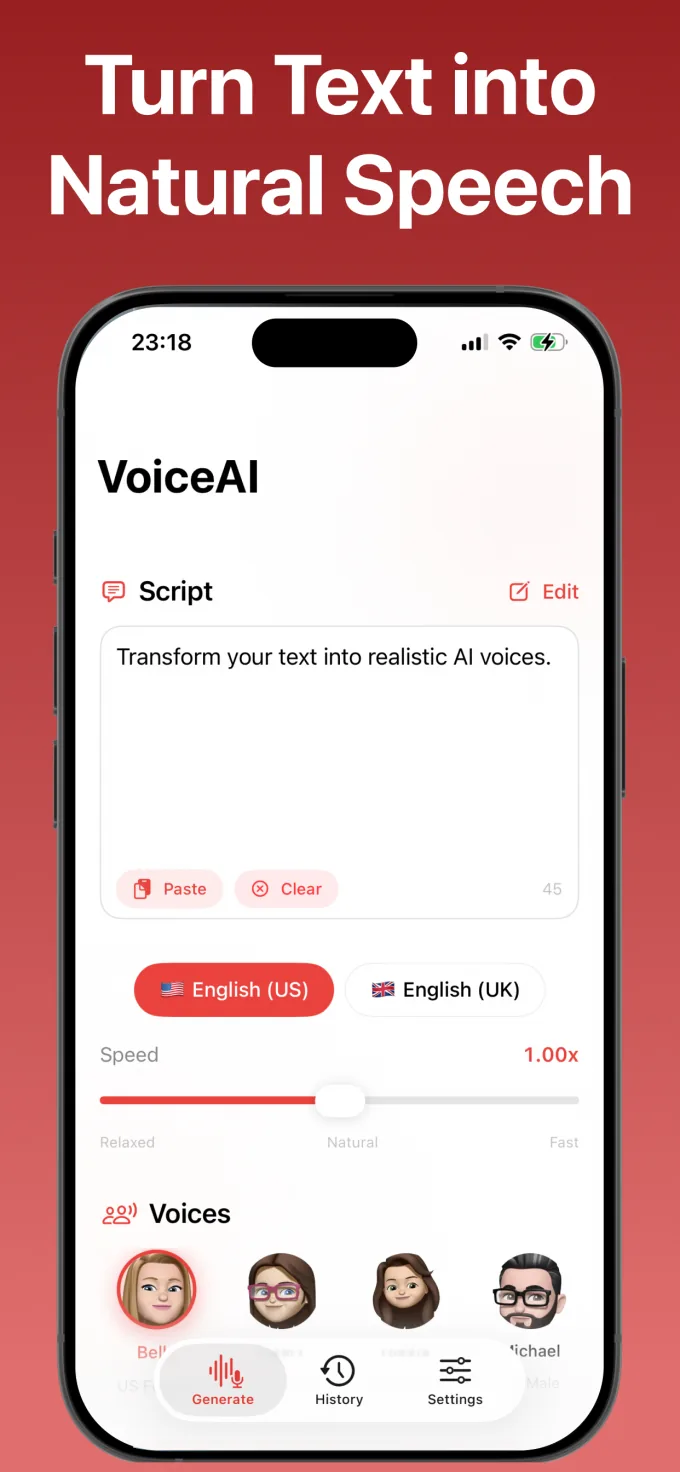
Save text-to-speech audio only after checking the wording, pronunciation, voice, and speed. A short review before export prevents avoidable corrections after the file has been shared or added to another project.
Finalize the text first
Remove draft notes, repeated paragraphs, and visual formatting that should not be spoken. Confirm that the text contains the complete opening and ending. Keep a copy of the final text if you may need to revise the audio later.
Generate a short test
Before generating a long passage, test one representative paragraph. Listen for voice fit, speaking speed, pauses, and pronunciation. This is faster than correcting a complete recording after export.
Review with playback highlighting
Follow the highlighted words while the audio plays. Pause when something sounds wrong and identify the exact sentence in the text. Edit that section, regenerate it, and listen again.
- Check names and uncommon words.
- Listen for missing pauses between ideas.
- Make sure numbers are spoken as intended.
- Confirm that no private or draft text is included.
Save the audio to history
Save a completed generation so you can replay it without preparing the text again. Use a clear title based on the subject or intended use. Consistent names make several saved audio items easier to find.
Share the correct version
Open the completed item and use the available share or export control. Select the destination supported by the iOS share sheet. Before sending, confirm that the selected item is the final version and that the receiving app supports the exported audio.
Final checklist
- Proofread the source text.
- Test the selected voice and speed.
- Listen through the generated audio.
- Save the final result with a clear name.
- Share only the reviewed version.
Speech Assistant Offline keeps text-to-speech generation, playback, saved history, and sharing in one iPhone and iPad workflow. Speech generation is performed on the device rather than relying on cloud synthesis.